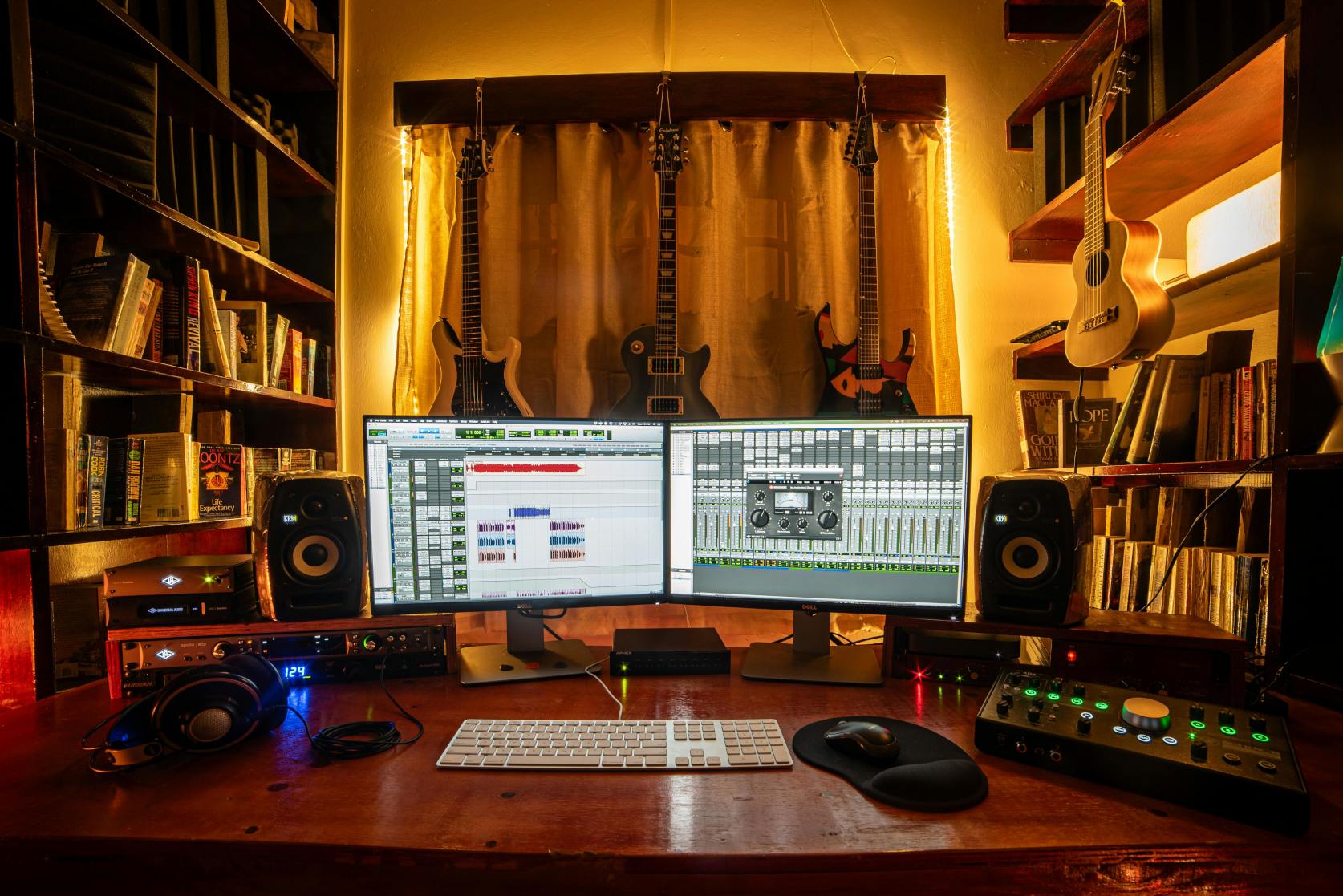
13 Important Factors in Computer Audio Recording
As Electronics engineer/recording professional, I get to know with various gears. I could say that the quality of your audio recording output will be affected by these following components:
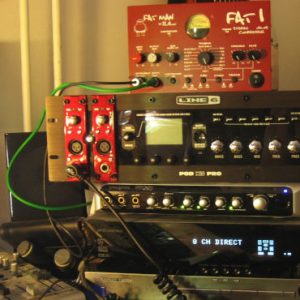
1. The quality of your audio interface
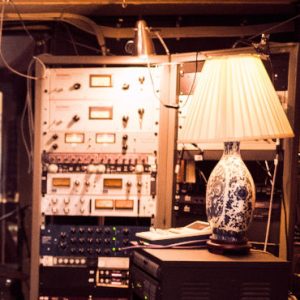
2. The quality of your Audio Mixer- only if you are using an audio mixer in your studio; however this is not required anymore with current audio interface technology.
3. Speed and Size of the Hard disk.
4. Speed of your CPU
5. Size of your RAM
6. The clarity and the response of your studio nearfield monitors.
7. The noise coming from the connections (wires, etc)
8. The quality of your DAW (Recording software or Digital audio workstation)
9. The quality of your motherboard
10. The quality of your headphone.(however it is not advisable to mix audio entirely using headphones)
11. The optimization of your operating system
12. The acoustics of your room
13. The quality of your CD-drive
14. The quality of your microphones and musical instruments.
Lets discuss this one by one:
The quality of your soundcard or audio interface
Before, I attempted to use an onboard soundcard from ASUS-P4P800X. It is a Soundmax Soundcard. Well, I can say it is decent for an onboard soundcard but the recording quality is not good. Although it helps me produce 7 songs from my catalog, but it takes me a very hard time to record because of these following weaknesses:
a. Extreme noise
b. No amplification of signals inputted to the computer
c. No proper grounding, I get electrocuted anytime I touched the ground surface and the bass/guitar strings.
d. Cannot reproduce bass frequencies very well.
Extreme noise can be handled by Adobe Audition 1.5 using the Noise Reduction feature. Proper grounding can be solved by placing your feet on an insulator.
But the most serious problems are: No amplification of signals especially recording bass, and cannot reproduce bass frequencies very well. And these affect the bass tracks of the song. Although, I managed to make the problems less than what they appear in the mixing process. But this type of approach is not a recommended technique for beginner audio recording/mixing enthusiasts. I am sure it will produce crappy results.
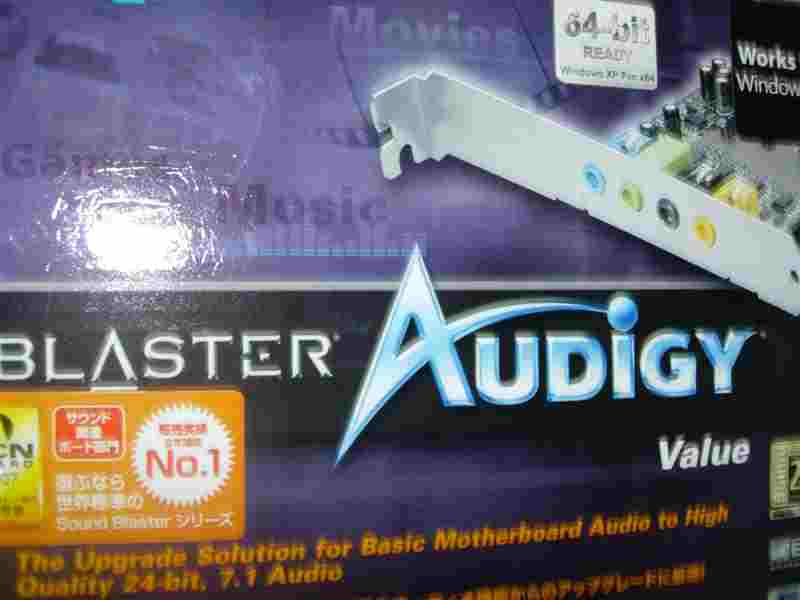
Until then, those problems were solved after I bought Creative Audigy Value Soundcard
, a great upgrade for my Soundmax Onboard soundcard. But serious problems can still not be fix by that soundcard alone. It is because the amplification feature of that soundcard is still not strong and not professional quality
Starting in year 2011, there are lot of great USB and Firewire external audio interfaces designed for home music production. I mean, these PCI soundcards such as those designed by Creative are not professional recording soundcards but they are only great for gaming.
I strongly recommend using an external USB/Firewire audio interface instead of PCI soundcards. You can read this post on the cheapest 24-bit/96KHz audio interface that you can buy.
The quality of your audio mixer
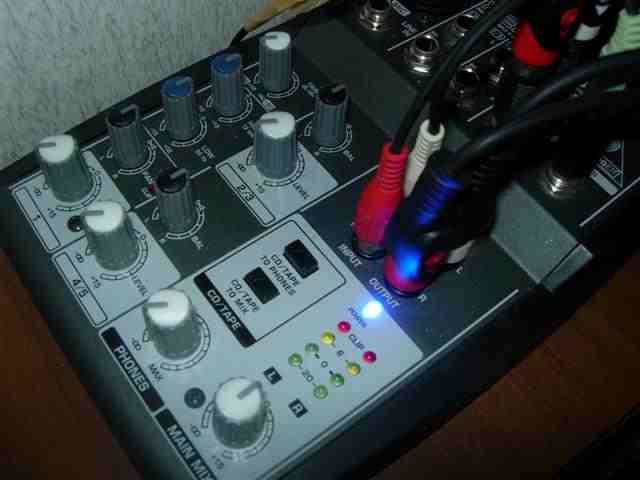
Mixer works as to accept input signals for processing and output mixed signals to other audio components such as the soundcard of the personal computer. And there are tons of application for audio mixers not only this. Well, Creative Audigy amplification feature cannot handle the passive bass guitar signal levels because amplitude still too low. At first I buy Behringer Xenyx 502 mixer
. It is very handy and cheap. The results are fabulous, I can now record the bass like a pro, the signals were strong and sound is fat.

![]()
Read this post if you would like to know the tips on buying an mixer for home recording.
The speed and size of the hard disk
In the audio recording process, the sound going out from the guitar/any instruments are analog in nature, hard disk cannot store analog data, so the function of the soundcard is to convert analog to digital signals, digital signals are then stored in the hard disk.
In the beginner, I record at 16 bit/44.1 KHz since this is the only supported recording bit depth and sampling rate by my device on that time. Starting in 2011, I now record at least in 24-bit/48KHz using my Saffire Pro 40 audio interface.
The type of sound file is WAV which is a very heavy file and consumes a lot of disk space. The sampling rate is also very important to consider when selecting the size of your hard disk. Based on my experience, I have 160 GB of hard disk and when I record at 16 bit/44.1 KHz, it is a very efficient because file sizes are still not big compared to the size of the disk. But the quality is still good. If you have bigger disk, you can record at much higher resolution like 24 bit/ 96 KHz, and this will give a bigger WAV file. The speed of the hard disk is important because during recording and the sound card performs the audio to digital conversion, the disk will store the data by rotating measured in revolutions per minute (RPM). So a slow rotating disk can have problems with recording, and it is recommended to select a faster hard disk such as 7200 RPM range. I currently installing 2 disk drives: Western Digital 160 GB 7200 RPM Hard Drive
in my PC.
Today starting in 2012, I have 1 TB hard drive dedicated for recording 24-bit audio. Hard drives today are cheaper than it was before.
The speed of your computer CPU
This is very important because CPU is the brain of the personal computer. The faster it is, the more information is processed. The CPU commands the transfer of data from soundcard to hard disk when using what we call as PIO (Programmed input/output) mode. PIO mode stresses the CPU too much that it is not a recommended data transfer mode because transfer of information coming from the soundcard (in digital form) are being passed via the CPU for checking then the CPU will transfer to the disk to save. The most recommended is DMA (Direct memory access), all data transfers from the hard disk will not pass the CPU for checking, this is optimal during recording where analog is being converted to digital then the data will pass from the soundcard to the hard disk.
The quickest way to check when PIO mode is activated is to hear clicks, distortion when audio is being played back. Despite of having a high processor speed, there were distorted clicks on the audio. This is a sign that PIO is enabled. PIO is not recommended for recording because it will give recording problems such as latency and distortion.
The fastest processor is highly recommended such as the latest Pentium 4 processors. Although in 2012, there are tons of faster processors than this including the most recent Core i7. You can even use 64-bit processors paired with very high RAM for a more efficient DAW.
Size of your RAM
RAM is called Random-Access-Memory, one of the most important components in a computer system. Its main role in computer audio recording is like a refrigerator. Without refrigerators in a home, every time we would like to buy something like food. We have to go to the supermarket to get what we want. It’s takes a long time to go to the supermarket then come back to our home. Instead, having a refrigerator saves time because you just to buy one time and store the food in it. So the next time our stomach needs some food, we will not need to go to the supermarket. We will just open our refrigerator.
RAM functions like that in a computer system, in audio recording, chunks of digital audio data are being routed from hard disk to CPU, instead of querying hard disk all the time. RAM stores the data temporarily, for faster data transfer. So in a computer audio recording, big RAM is much needed. For a typical Pentium 4 system, I recommend a RAM of at least 1GB. Today in 2012, you can easily get 4GB RAM for you 32-bit DAW computer, then with 64-bit processors and operating system you can even install 8GB of RAM comfortably and easily with supported motherboards.
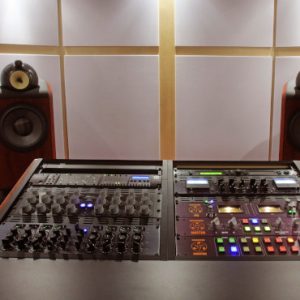
The quality and response of your studio monitors
This is very important because studio monitors are gateway to your ears, it is your messenger. In a real life scenario, supposing you are in a battle and you have messenger that is giving you false information. You will surely not win in a battle. But you have a studio monitor that cannot reproduce bass sounds (do not have sub-woofer), then you are in a big trouble. I highly recommend, whatever type of studio monitor you use, make sure:

a. It has wide and flat frequency response (around 53Hz to 20,000 Hz)
b. It is a stereo sound system (2.1 is recommended for audio mixing, more than that is just confusing)
c. Has subwoofer dedicated to sub bass. As a sidenote, there are a lot of debates on this. Some pros do not use subwoofer during mixing. I recommend having one if your music is rich with bass. It make sense that you cannot mix accurately to those frequencies you cannot hear.
d. Medium to high power amplifier can be played loud without distortion or cracking.
One of beginner studio monitors for computer audio recording is the M-Audio Studiophile AV 40 Powered Speakers
:
But if you have the budget, I strongly recommend going for M-audio BX5a or BX8a. There are a lot of reliable studio monitors like the Yamaha HS80 and HS50M.
The noise coming from the connections
There is no perfect recording system, all of it has noise. Noise is unwanted in recording because it will surely destroy your recorded signal. Noise can be further classified as “hum” (low frequency noise, such as 60Hz hum from power lines) or “hiss” (high frequency noise). Although all system has noise, in computer audio recording it is highly suggested to keep it at minimum. It is because; most home recordings do not have the most expensive recording systems that control noise. The best way to control noise is controlling the connections. Connections are form of wires/transformers that are interconnected with each other. For maximum power transfer condition, these connectors must be matched. And it is highly suggested to use shorter wires as signals will get lost as the wire gets longer. Buy a decent and clean connector free from rust. Rust can contribute heat resistance which converts to noise in audio.
The quality of DAW (Digital Audio Workstation) software
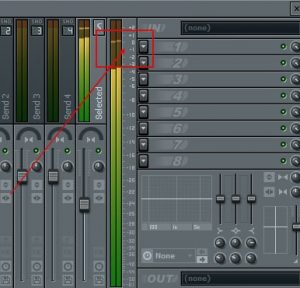
This is important. Quality DAW can offer a wide recording features to maximize recording quality. Examples are noise reduction features, effects and plug-ins. Cheap DAW, especially the freeware cannot help to improve your recording and mixing. There are many high quality DAW, like Adobe Audition
(the one I am using for more than 6 years), Pro tools from Digidesign
(industry standard), Cubase
(also a good one) , Sony Sound Forge
(available with video editing features if you need).
Today in 2012, my new personal favorite is Reaper. It only costs $60 to license and you can get a lot of features and superb 64-bit internal processing.
Those are the ones I recommend if you want to select a DAW software. I highly suggest that you will not shift DAW software always. It is good to master one to maximize recording quality. I believe quality recordings are a function of ones ability to handle his DAW. This means that a Cubase expert can produce great recordings than an amateur Protools user. Mastery of your selected digital audio software is the highly important in computer audio recording.

The quality of your motherboard
I used the top of the class motherboard at the time (2004) I built my computer. It was Asus P4P800-X. It was far expensive than any class during that time. But I say, it was worth it. P4P800-X has the best onboard soundcard I have tried and helps me to record up to 7 of my best songs! Without even relying on high-end soundcard. Now that I switch to Creative Audigy Value, I even missed the onboard soundcard. But I know I could even produce a better recording with my new gear investment. Powerful motherboards offer so many RAM slots, PCI slots, faster connections (I mean busses). It is analogous to having your components in a very wide highway. We can drive very fast in a very wide highway without traffic. It is the same with expensive motherboards. Today in 2011/2012, there are a lot of great newly updated motherboards. Always do extensive research before buying something.
The quality of your headphone
Athough not very important but it you will use this to check the audio during a recording process or review the mix in a headphone. Although it is not recommended to mix using headphones but having quality headphones makes a difference in quality recording.
The optimization of your operating system
This is very critical as the operating system of your computer controls the recording process. If it is not optimized, it will increase the latency of your recording and drop outs in your audio. In my system , I have used Windows XP
(as of 2010, latest release is Service Pack 3), and for around 6 years it served me well.
I do tweaks on my windows xp computer and here are some few tips to optimize it:
a. Use DMA mode not PIO mode. To check go to control panel, system- hardware-device manager-IDE/ATA controllers-Primary IDE channel-Advanced settings-Current transfer mode.
Current transfer mode should be DMA.
b. Defrag computer once a month. Defragmentation process, will make the fragmented files closer to each other in a hard disk space, thus faster to be accessed.
b. Optimize for background services, Audio drivers runs in the background. And to do this, Control panel-Device manager-system-advanced-performance-advance-processor scheduling -background services.
c. Optimize for best performance- To do this, go to control panel-device manager-system-advance-settings-visual effects-adjust for best performance. In this type of optimization. Windows XP will not display the flashy colors, animations thus helping to save it for audio usage.
d. Optimize the virtual memory- set it to system managed.
e. Clean files regularly to optimize hard disk space.
Related and recommended tutorials on operating system optimization for home recording:
Windows XP/7 Audio Recording DAW Tweaks & Optimization Tips
Optimize Windows XP for Firewire &USB Audio Interface during Recording
The acoustic treatment of your room
Of course it matters, although we cannot afford a world class acoustic treatment. But in my experience, I learn the acoustics in my room by closely studying the frequency response of it. I do it by listening to a professional mixed CD in my room, hear the bass levels, treble levels, mid frequencies. How is it responding to your ear is important. Then go to your mix and matched to that level. By knowing the acoustics of your room, it will help you create a good mix. The most important is that, give some time to know the acoustics of your room by listening to a professionally mixed CD and compare it to your mix.
The quality of your CD-drive
Many would say, this is not so important. Yes it is. But take note that during a mastering process, wherein a mastered track will be burned down to CD audio, this will use the CD drive. If your CD drive is not optimized for audio, then you will have problems. The best quality CD drives for mastering/computer audio recording applications requires a very slow burning speed of around 1x to 4x. It is because the slower your burning speed, the higher accurate it is. The faster the burning speed, the more prone to errors. It is why master CD to be submitted for replication needs to be burned at a slow rate to prevent digital errors during CD replication.
If you want more details, you can read the updated home recording technology on “How to easily convert your PC into a recording studio?“. And also refer to this complete information on how to build a recording studio using digital audio workstation method.
Content last updated on February 4, 2012
Update July 29, 2010: If are looking for tips on how to setu...
Commercial quality DAW software are priced around $400. Agai...
I started building my home studio, 6 years ago. Now, it has ...
Have you encounter recording equipment like an audio interfa...

July 25th, 2009 at 1:23 pm
Hi Emerson. Could you explain me how you record drums using just an USB mixer and software. I have a Peavey with 16 channels but the software cannot record cannot record single drum tracks, for example, just the kick drum in one single track, the snare on another track, etc… Thanks.
August 1st, 2009 at 2:44 pm
Hi Translator,
Are you using a multitrack software? Or are you in multi-track view? In order to record each of those individual drum tracks what you have to ensure are the following:
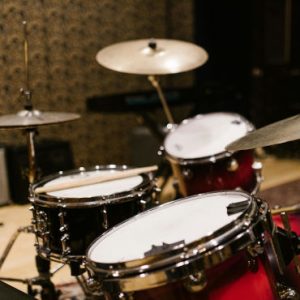
a. One microphone for Kick then feed to multirack number 1 (in your software).
b. One microphone for the overhead (cymbals) then feed to track #2 in your software.
c. One microphone for snare then feed to track #3 in your software.
d. One microphone for toom then feed to track #4 in your software.
So when the recordin session starts, those microphone captures individual soundwave and route to specific track number in multi track session. If you do not know how to use the multi-track sessions, refer to your software manual. Hope this helps.
October 4th, 2010 at 5:20 pm
would like to buy a sound card and trying to get “M-Audio Audiophile 2496 MIDI Digital Recording Interface”…
What is ur advice ?
October 7th, 2010 at 10:24 am
I suggest reading reviews about M-Audio 2496. You can read it here: http://bit.ly/9Kk54u
Make sure your computer supports this sound card, so you need to know the technical requirements first, to make sure that if you install this card to your computer, it is supported.